Manually running the same tasks over and over again with your
computer can be tiring and sometimes boring. That’s why some programs
and tools were created by system administrators to automate repetitive
tasks. For example, remembering to shutdown your computer every night
at 10 PM should be automated. Windows and Mac OS X users may have
similar tools that work to execute defined tasks at a pre-defined time
or after an event occurs.
Linux systems do have Cron by default, but it’s not very user-friendly and wasn’t intended for beginners. In fact, some advanced users still don’t completely understand how to use and manage Cron in Linux systems.
There are single-purpose tools that allow you schedule tasks for only a particular event or command, like shutting down your computer. These single-purpose tools are not very useful and don’t last long.
Cron on the other hand lets you schedule basically any task or events, but it isn’t user friendly. It can be managed from the command line using crontab editor.
So, back to the question. Is there a better task scheduler in Ubuntu? Here’s that I want to say. If you need a simple yet power tasks scheduler in Ubuntu, you may want to install Gnome-Schedule. Gnome Schedule is a graphical user interface (GUI) tool that leverages the power of Cron. It brings together the power of Cron with the ease of use of the GUI. Instead of scheduling tasks using the command line, you can use Gnome Schedule to accomplish the same goal.
Below, I will show you how to install and use Gnome-Schedule in Ubuntu 13.04 to automate tasks easily.
To get started with install Gnome Schedule, run the commands below.
After installing it, open it as root or administrator. Do to that, run the commands below to start Gnome Schedule as admin.
Opening Gnome Schedule as root or administrator lets you schedule system-wide tasks that require admin rights. If you scheduled a system task from Gnome schedule launched as your account and the task requires administrative rights, it will fail.
To schedule a recurrent task, click ‘Next – > Recurrent task.

Next, type the description of the task and the command as shown below. Most Linux commands are in these locations:
/sbin/ /usr/bin /usr/local/bin

Another thing to watch for is the time and date settings. Make sure to use the military time format from 0 to 24 hour style. So 10 PM is going to be 22:00 hours. Also, the * in the Day, Month and Weekday field represents all. Or every Day, Month, and Weekday. The * tells Cron to run continually these selected fields.
When you’re done, click ‘Add’

Now the task is scheduled and ready to be executed.
That’ it! So, the next time you’re looking for a simple task scheduler in Ubuntu, check out Gnome-Schedule. It can be use the schedule any tasks, not just shutting down your computer. Also, remember to look in /sbin/ /usr/bin/ /usr/local/bin for commands. For example, to launch Firefox at 1PM daily, type this command in the command field.
Enjoy!
For further queries,mail me :- sagar.dagdu@gmail.com
How useful was this blog to you?
Please leave comments below..
Linux systems do have Cron by default, but it’s not very user-friendly and wasn’t intended for beginners. In fact, some advanced users still don’t completely understand how to use and manage Cron in Linux systems.
There are single-purpose tools that allow you schedule tasks for only a particular event or command, like shutting down your computer. These single-purpose tools are not very useful and don’t last long.
Cron on the other hand lets you schedule basically any task or events, but it isn’t user friendly. It can be managed from the command line using crontab editor.
So, back to the question. Is there a better task scheduler in Ubuntu? Here’s that I want to say. If you need a simple yet power tasks scheduler in Ubuntu, you may want to install Gnome-Schedule. Gnome Schedule is a graphical user interface (GUI) tool that leverages the power of Cron. It brings together the power of Cron with the ease of use of the GUI. Instead of scheduling tasks using the command line, you can use Gnome Schedule to accomplish the same goal.
Below, I will show you how to install and use Gnome-Schedule in Ubuntu 13.04 to automate tasks easily.
To get started with install Gnome Schedule, run the commands below.
sudo apt-get install gnome-schedule
After installing it, open it as root or administrator. Do to that, run the commands below to start Gnome Schedule as admin.
sudo gnome-schedule
Opening Gnome Schedule as root or administrator lets you schedule system-wide tasks that require admin rights. If you scheduled a system task from Gnome schedule launched as your account and the task requires administrative rights, it will fail.
To schedule a recurrent task, click ‘Next – > Recurrent task.

Next, type the description of the task and the command as shown below. Most Linux commands are in these locations:
/sbin/ /usr/bin /usr/local/bin
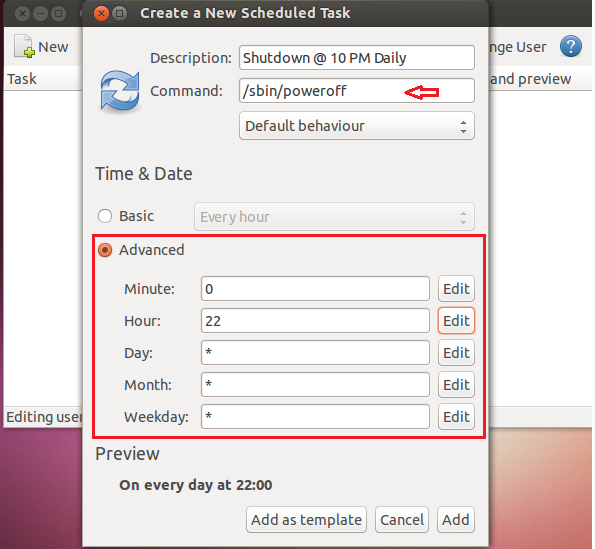
Another thing to watch for is the time and date settings. Make sure to use the military time format from 0 to 24 hour style. So 10 PM is going to be 22:00 hours. Also, the * in the Day, Month and Weekday field represents all. Or every Day, Month, and Weekday. The * tells Cron to run continually these selected fields.
When you’re done, click ‘Add’
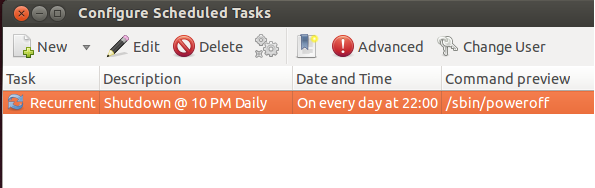
Now the task is scheduled and ready to be executed.
That’ it! So, the next time you’re looking for a simple task scheduler in Ubuntu, check out Gnome-Schedule. It can be use the schedule any tasks, not just shutting down your computer. Also, remember to look in /sbin/ /usr/bin/ /usr/local/bin for commands. For example, to launch Firefox at 1PM daily, type this command in the command field.
/usr/bin/firefox
Enjoy!
For further queries,mail me :- sagar.dagdu@gmail.com
How useful was this blog to you?
Please leave comments below..